Update: Target Metric Setting

A metric shows the present, but it doesn't directly tell you the direction.
The fact that the monthly response rate is 73% alone makes it hard to judge whether this is doing well or needs improvement. The same goes for a ROAS of 3.2, or 80 million KRW in monthly revenue. The fact that it rose compared to the previous month is a good sign too, but in the end what we want to know is "how close did we get to the target."
In data analysis, context comes from comparison. And the clearest basis for comparison is the target the organization wants to reach. This update is a feature that shows that target together with the data.
We support a target-setting feature
Going beyond interpreting a metric on its own in Deskroom, we added a target metric setting feature so you can check the current state against the target your organization has set, at a glance.
A metric is meaningful in showing the current situation, but without "how far do we want to go," judgment becomes hard. In a CS environment you need a response rate target, in marketing a ROAS target, and in sales a revenue target to properly evaluate current performance.
Now you can set a target value for each metric and check it with a target line on the chart.
You can set it up simply with a single click
First, in the ontology, go to the metric that needs a target set. A target value section was added to each metric. Here you set and save the target value. For example, you can set it up as below.
- A target value of 85% for the "monthly response rate" metric
- A target value of 4.5 for the "ad ROAS" metric
- A target value of 100 million KRW for the "monthly revenue" metric
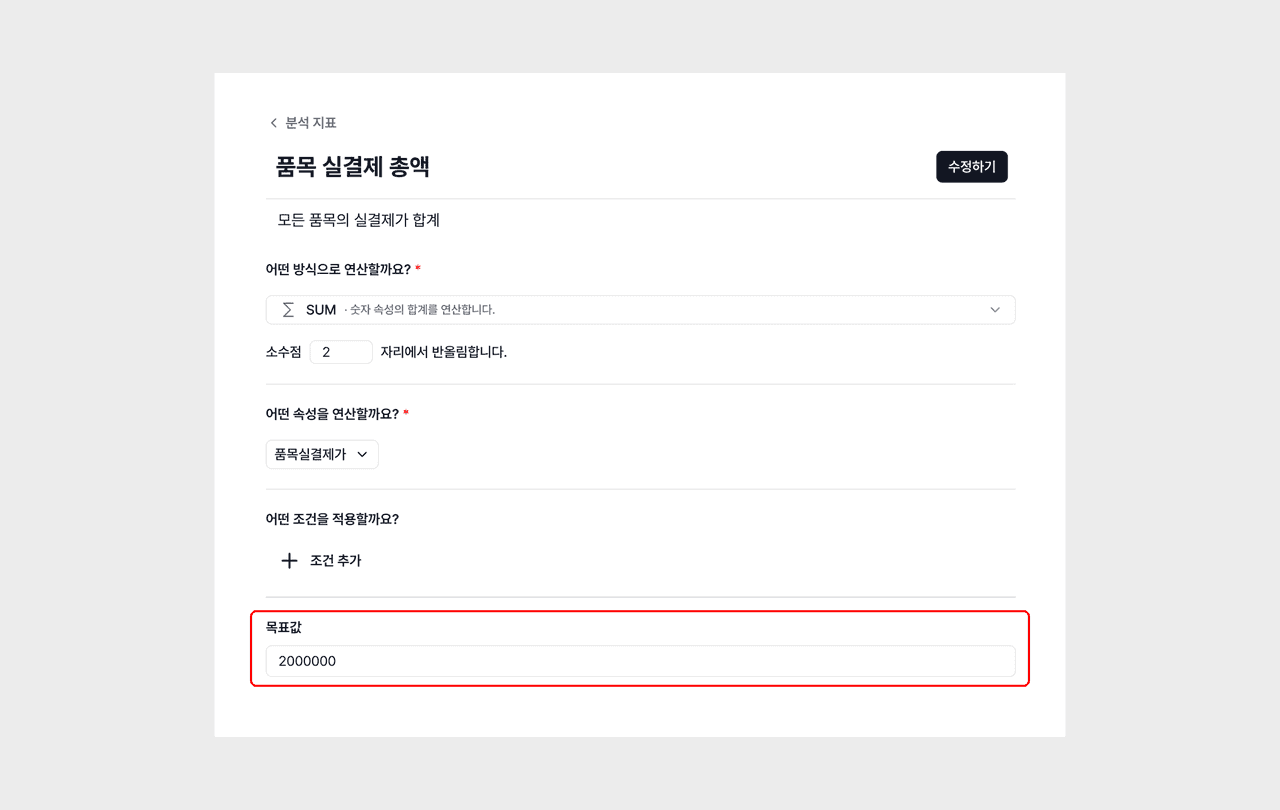
Once you set a target, you can view the target value together with the metric on the related dashboard. The set target value is displayed as a baseline above the chart, so you can intuitively check where the current metric stands against the target.
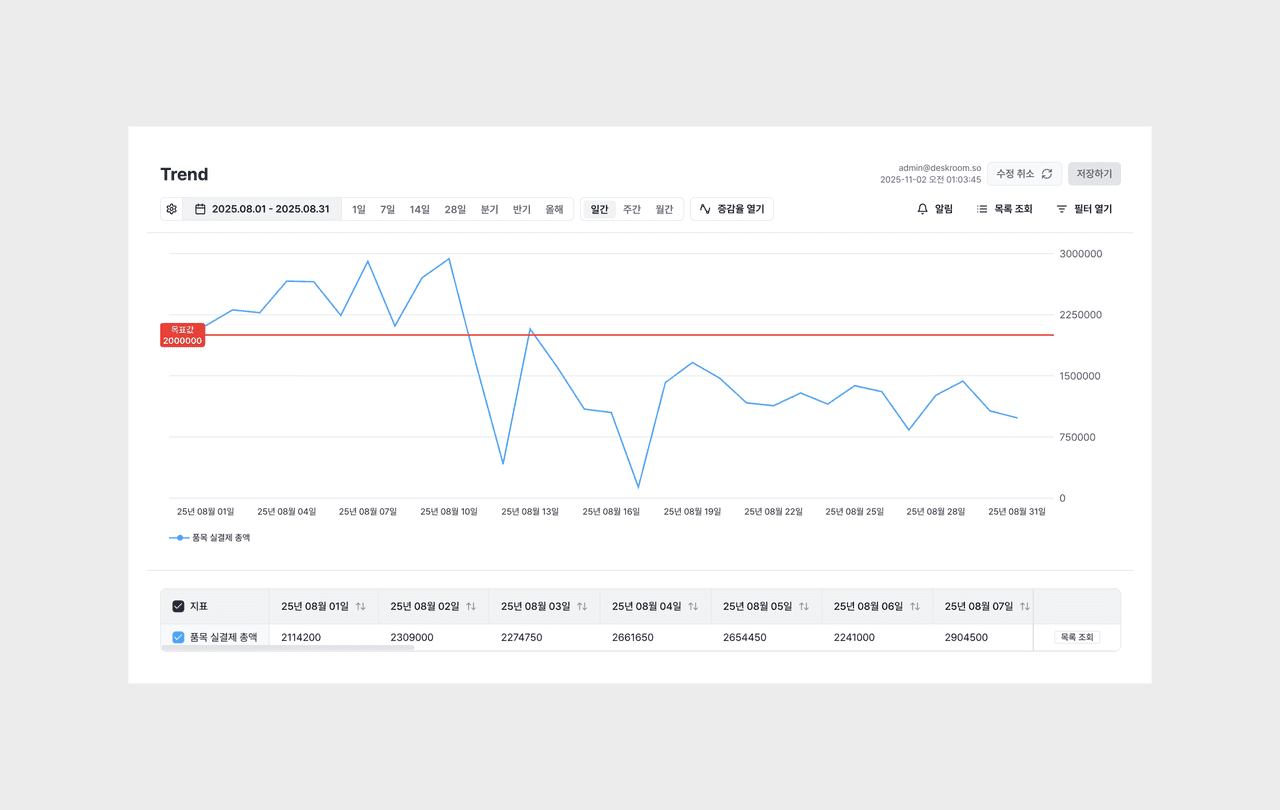
When there is a target, the priorities for improvement also become clear.
- "We're 7%p away from the 85% target" rather than "this month's response rate rose to 78%"
- "We're 1.0 away from the 4.5 target" rather than "ROAS rose from 3.2 to 3.5"
- "We're 15 million KRW away from the 100 million target" rather than "we achieved 85 million KRW in revenue"
is the information that lets you make direct decisions.
Small but handy updates
Added a guide document section
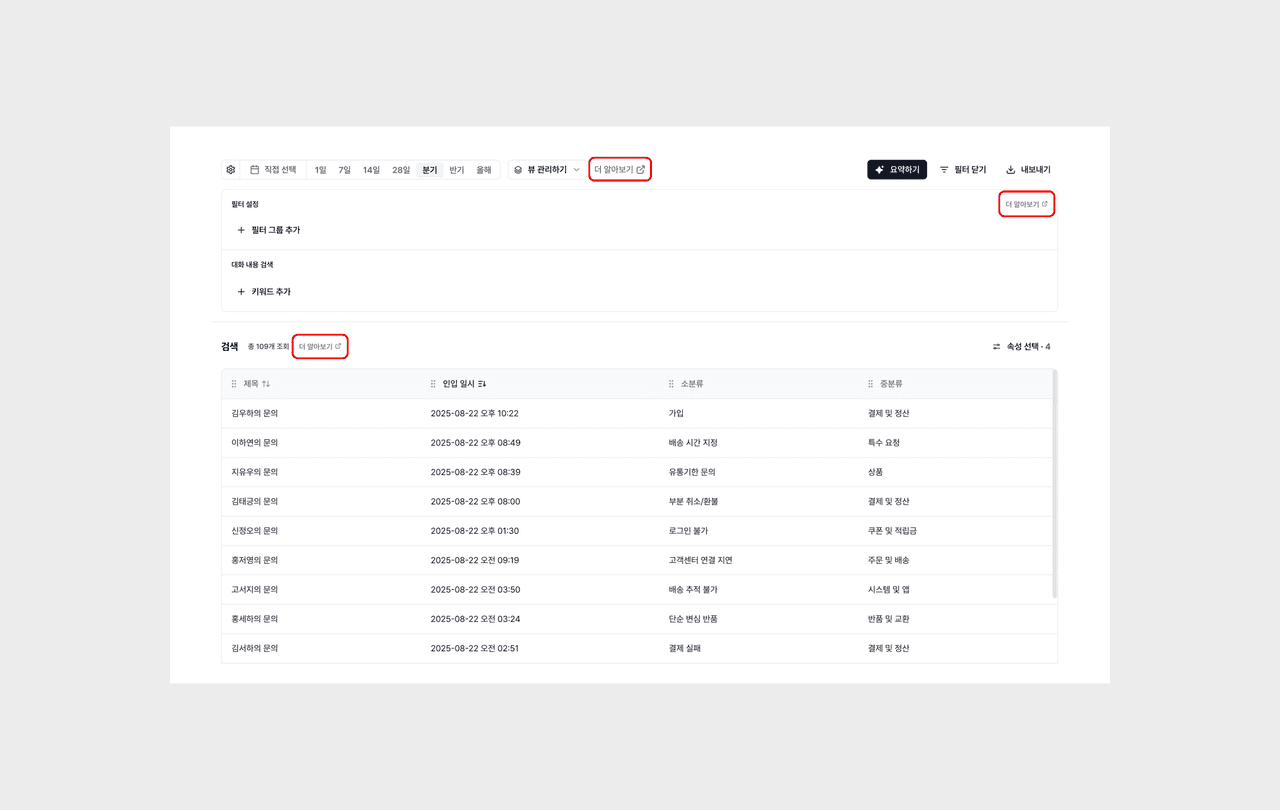
A guide document section was added across Deskroom.
If a question like "how do I use this?" comes up while starting your analysis or setting up a metric, you can now refer to it right within the product. You no longer have to break your flow looking for documentation. Check it right away, and continue your analysis right away.