Filter Groups
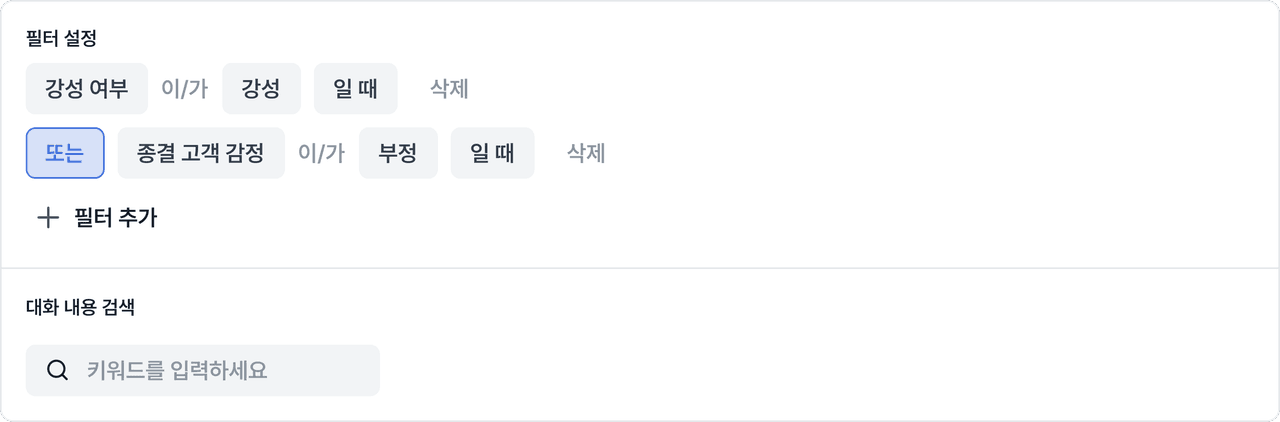
Deskroom has made its filter feature even more powerful. For numeric data, you can apply various conditions such as greater-than, less-than, and range settings, and for text or category values, you can set inclusion conditions in fine detail.
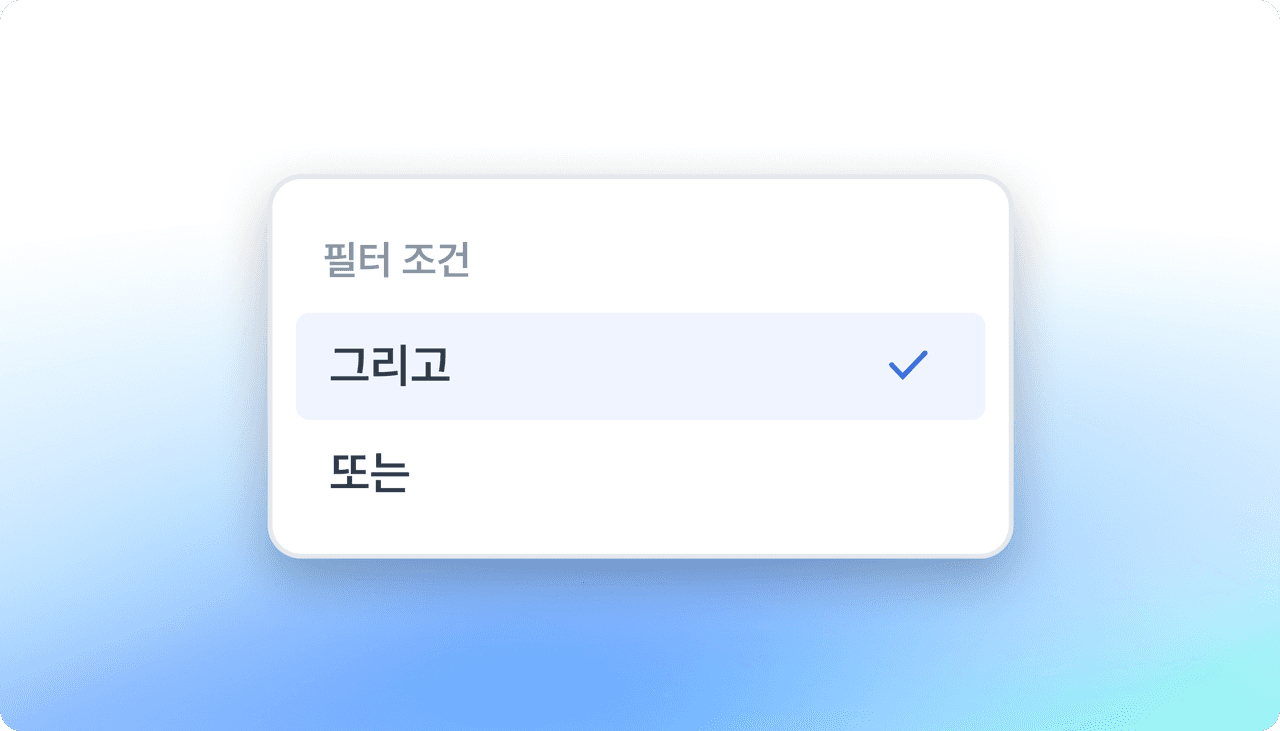
By bundling multiple conditions together, you can easily find the data you want to analyze.
Why we made this
When analyzing customer data, you often need to look not just at a single condition but at a combination of multiple conditions to grasp the context.
For example, there are cases where you want to see only the tickets that, among the "delivery delay" type, contain the keyword "missing" and took more than 24 hours to process. Or you might want to check only the tickets among "product defect" inquiries that contain the keywords "leak" or "damage" and to which the agent did not respond.
Like this, even situations that look complex can be easily separated and viewed using filter groups.
Use Cases
When you want to identify the cause of repurchase churn
Recently, a beauty brand filtered tickets by combining the following conditions to analyze the churn cause of "customers with low repurchase rates."
- Customers with no repurchase history within the last 3 months
- Response time of 1 hour or more
- Contains the keyword "sticky"
By bundling these conditions, they gained the insight that the churn rate is high among tickets where processing delays and product satisfaction issues occurred at the same time.
When you want to identify delivery problems during an event period
To check delivery problems that occurred during an event, they narrowed down the data with the following conditions.
- Contains an event-related tag
- Contains the keyword "delivery"
- Processing time exceeding 24 hours
Through this filter combination, they were able to pinpoint exactly the period when logistics processing slowed down after a specific event, and could quickly begin operational improvement work as well.
How to use
You can use the filter feature on every screen in Deskroom. In the filters on the dashboard and ticket search, click and combine the conditions you want.
Even in complex situations, you can analyze more deeply and make accurate decisions by using filter groups.