Update: Direct-Input Filter for Text Properties

This update adds the ability to filter by directly entering text properties.
Now, when filtering free-text format properties, you can directly type the words or phrases you want to narrow down by, instead of choosing from a predefined value list. You can apply multiple values at once or change the comparison operator to quickly refine the results.
Why we made this
The more free-text properties your data has, the harder it is to build the conditions you want with only a predefined value list. In the end, you end up spending time picking out the data separately outside the screen, or pausing your analysis flow to check the values.
This update narrows that gap, so text properties—like other properties—can be narrowed down right away with a single filter.
Direct-Input Filter for Text Properties
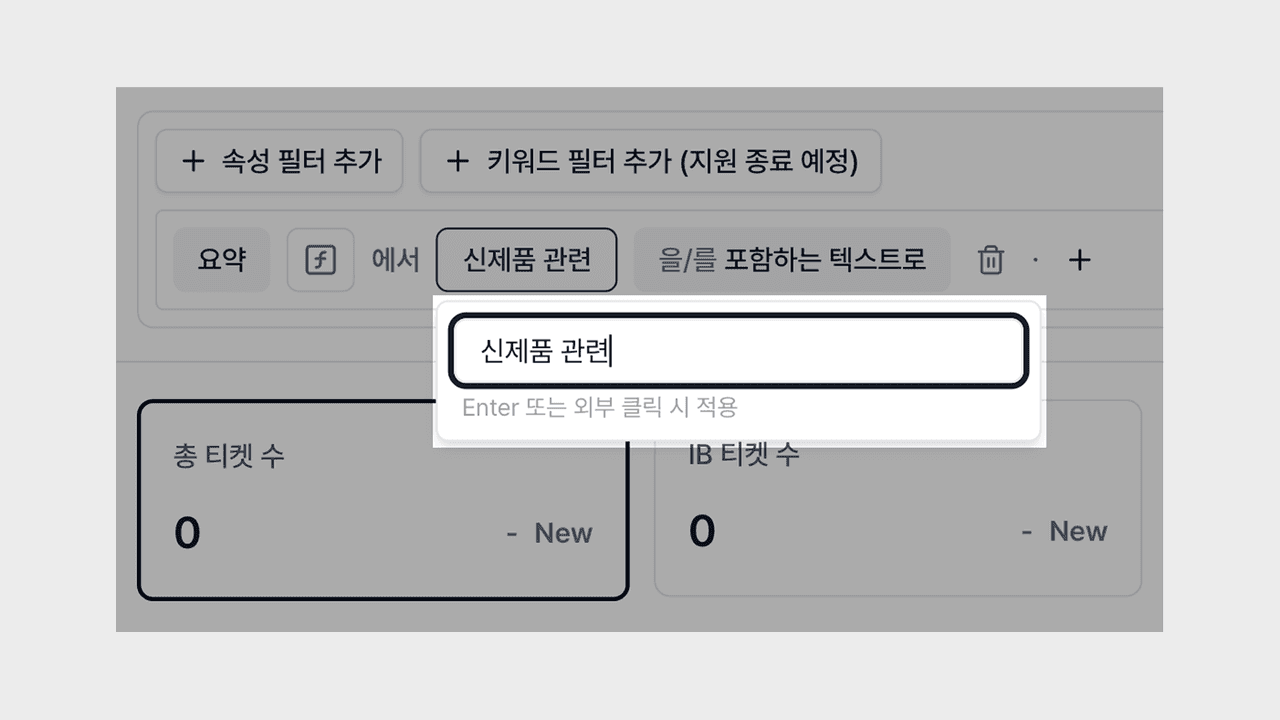
It builds a filter by directly entering free-text format properties without a value list.
- Direct input: Type the word or phrase you want to search for as-is to add it as a filter value.
- Multiple value application: Add multiple values in turn to compare them together in a single filter, or clear them all at once.
- Operator selection: Choose comparison conditions such as exact match or partial inclusion to finely set criteria suited to text properties.
Now you can handle tasks like "let's pick out only the items in the inspection report that contain 'crack,'" "let's filter only the SKUs whose product name exactly matches a specific brand name," "let's track two or three industry keywords together in investment review memos," or "let's check only the entries in the construction log that contain a specific material name" right away with a single filter. You can instantly find the pieces you need even in unstructured text data.
You can try it right away in the property filter on the Deskroom analysis screen. The time you spent narrowing down text properties can now be spent reviewing the data and making decisions.