Update: Permission Management
The scope of data access should vary depending on the size and roles within an organization. There are environments where every member can see all information, but there are also cases where the information accessible must be divided by team and by role.
This update extends the existing permission management feature to be even more refined. On top of organization-wide role-based permission management, we have added the ability to set access permissions granularly at the dashboard and view level. Now you can control not only "who can use which features" but also "who can see which data and analysis results."
Deskroom's permission management philosophy
Deskroom believes that flexible, systematic permission management is the foundation of data-driven decision-making.
If permission management is too loose, sensitive information gets exposed unnecessarily; if it is too strict, the people who need the data cannot access it, lowering work efficiency. Deskroom believes that organizations should be able to design this balance themselves.
That is why Deskroom offers three levels of permission management: role-based permissions applied to the entire organization, content permissions applied to individual dashboards, and view permissions applied to search views. Combining these three, you can build an access control system that fits any structure, from flat organizations to hierarchical ones.
Role- and permission-centered management
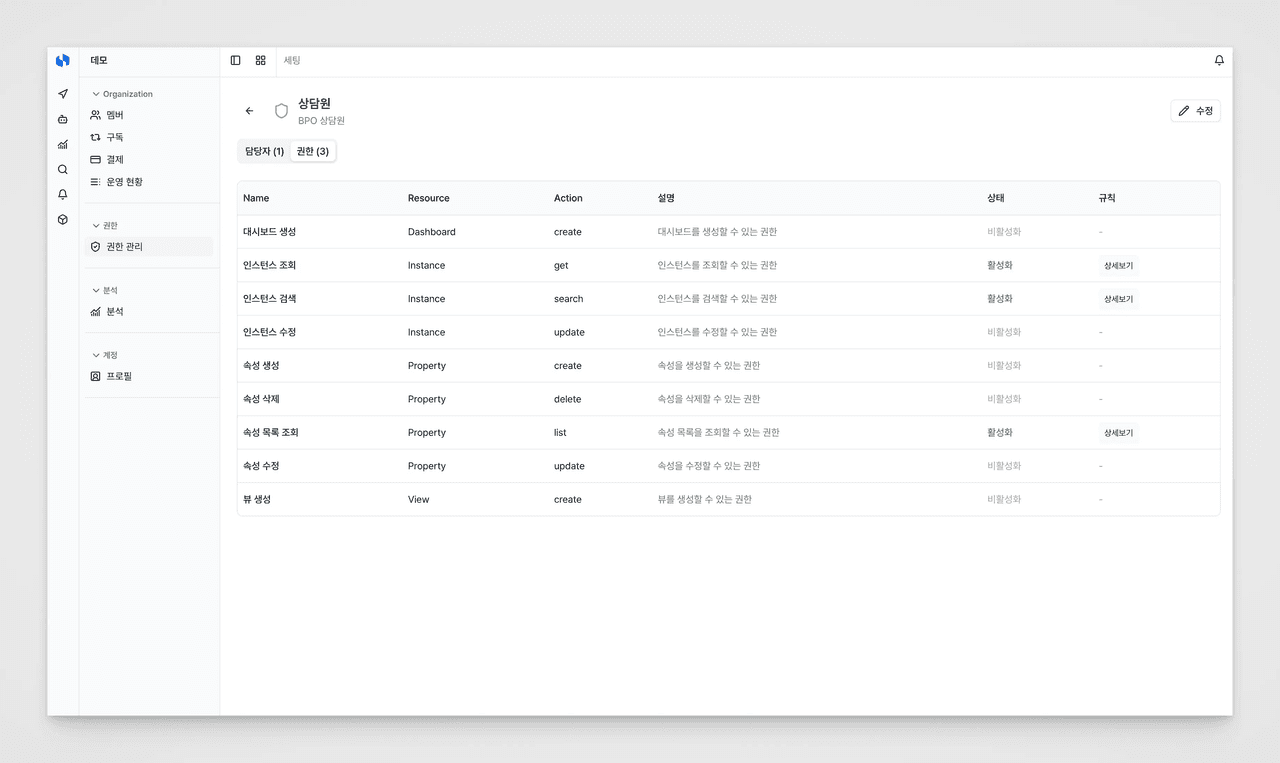
This is the most basic way to manage feature access permissions at the organization-wide level.
Each user has one role, and each role can be configured with multiple permissions. For example, you can set the "agent" role to only view instances, while the "analyst" role can also create and edit dashboards.
This is useful when you want the support team to only view and search customer data, the data analytics team to create and edit dashboards, and only administrators to change organization settings.
Dashboard permission management
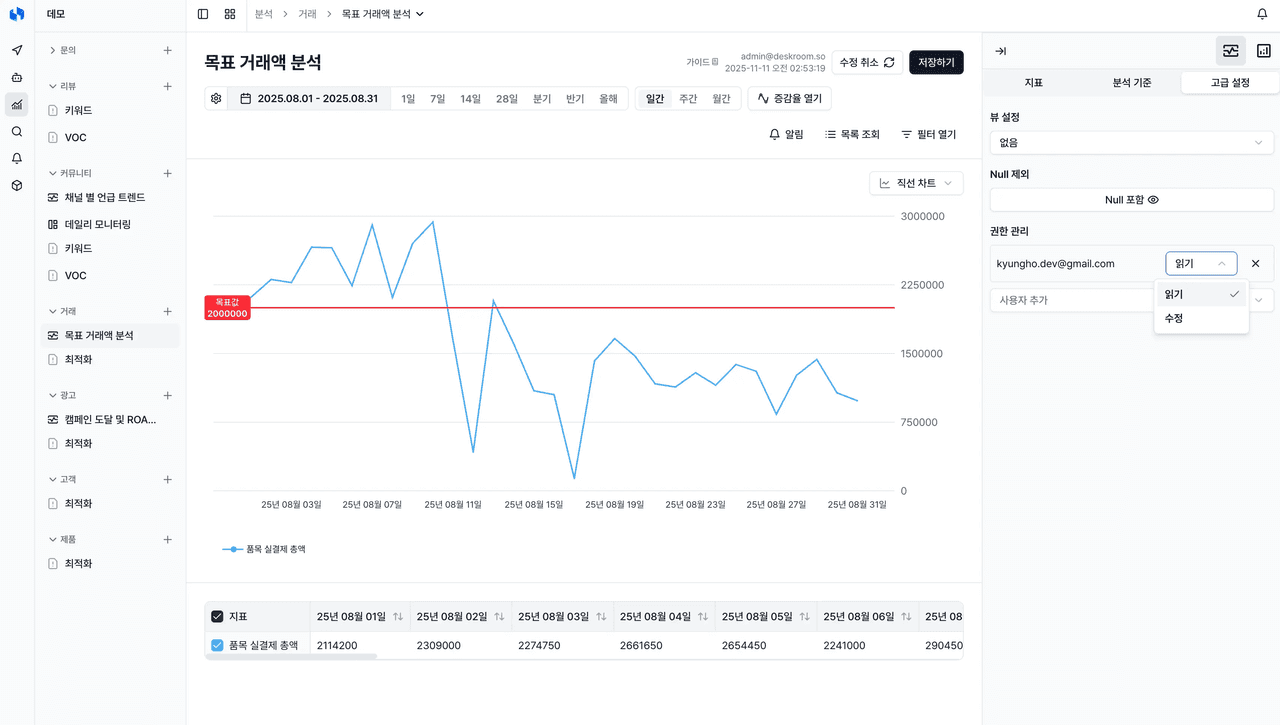
Manage access permissions for specific dashboards individually.
By default, a dashboard can only be seen by its creator and administrators. You can grant read or edit permissions only to the people who need them, enabling operations such as sharing Dashboard A with the marketing team and Dashboard B with the CS team.
Use this when you want to share the marketing performance dashboard only with the marketing team, let the entire CS team view the CS trend dashboard but only the team lead edit it, or share an executives-only dashboard only with the leadership.
View permission management
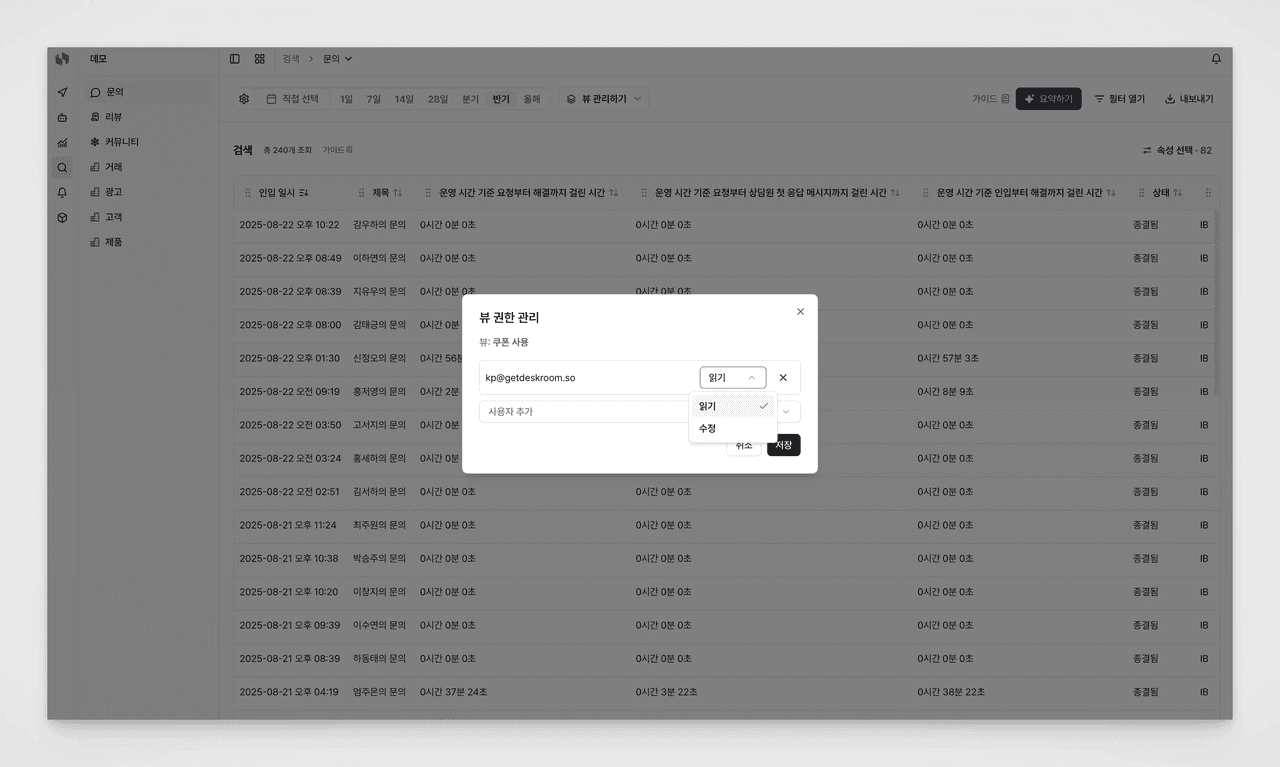
Manage access permissions for views on the search screen individually.
A view is a feature that saves a frequently used combination of filters and column settings. By default, a view can only be seen by its creator and administrators, and you can grant read or edit permissions only to the people who need them.
This is useful when you want to share frequently used search filter combinations with your team members, share views containing sensitive data only with specific people, or provide new employees with preconfigured views so they can get started quickly.
Permission management scenarios
By combining permission management features, you can apply access control that fits a variety of work situations.
When you want everyone to see the same data but restrict setting changes, use only the administrator and member roles and share dashboards and views with everyone. Data access stays open, but only administrators can modify organization settings or the ontology.
When different departments care about different data, create roles for each department such as marketing, CS, and operations, and build dashboards and views tailored to each department and share them only with that department. Each team can focus on the data relevant to their work.
When you want to share the same dashboard but grant edit permission to only some people, share the dashboard with the whole team with read permission, and grant edit permission only to the team lead or the person in charge. Anyone can view the data, but only the person in charge can change the dashboard structure.
When you want to restrict analysis results that contain sensitive information, share executives-only dashboards or HR-related views only with specific people. Even if someone knows the direct link, they cannot access it without permission, reducing the risk of information leaks.
When you want new employees to adapt to their work quickly, create and share views in advance that contain frequently used filter combinations and column settings. New employees can browse the data they need right away without having to set up search conditions from scratch.
When you want to share only some data with external partners, share only specific dashboards with the partner's contact with read permission. You can provide the necessary information while restricting access to other internal data.
Small but handy updates
Automatic addition of property values
When AI encounters data that is hard to classify using existing property values, it can automatically add a new property value.
Just enable [Auto-generate ON] in the property settings; it is disabled by default. Automatically generated property values are marked with an Auto-generated tag to distinguish them from values added manually.